

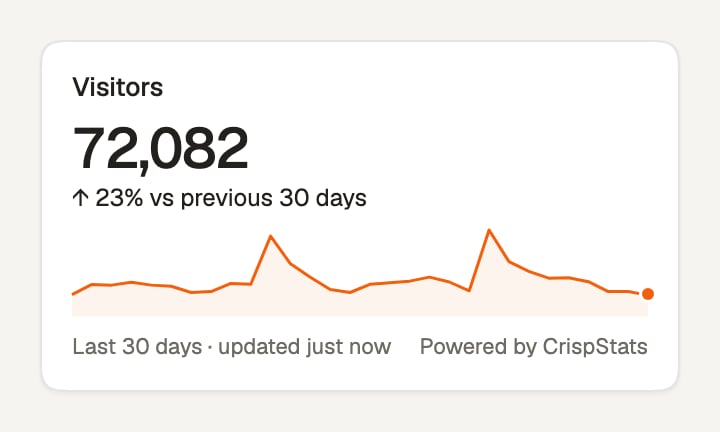
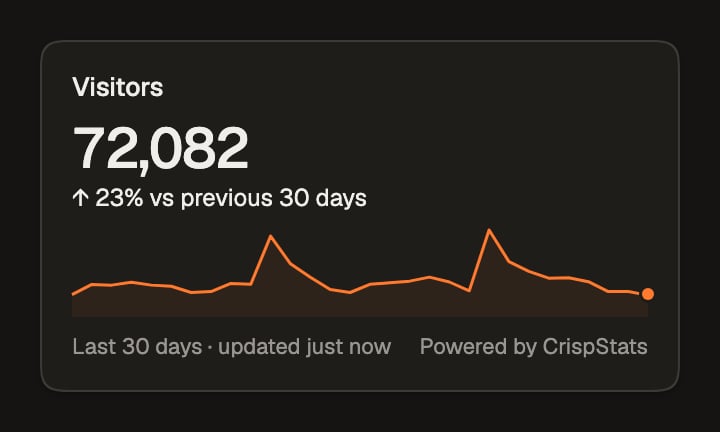
Visitors card, soft style
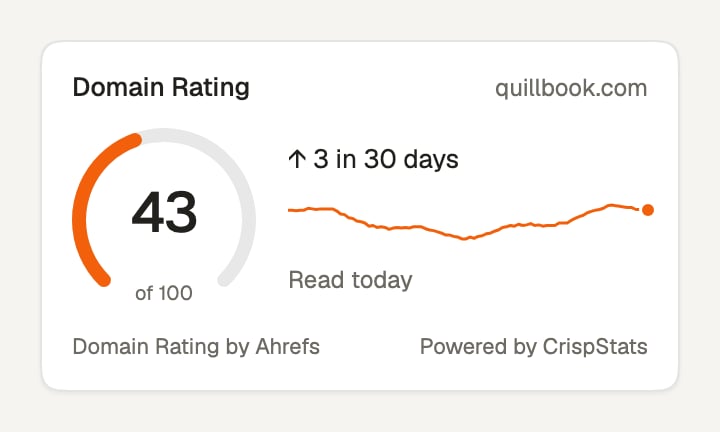
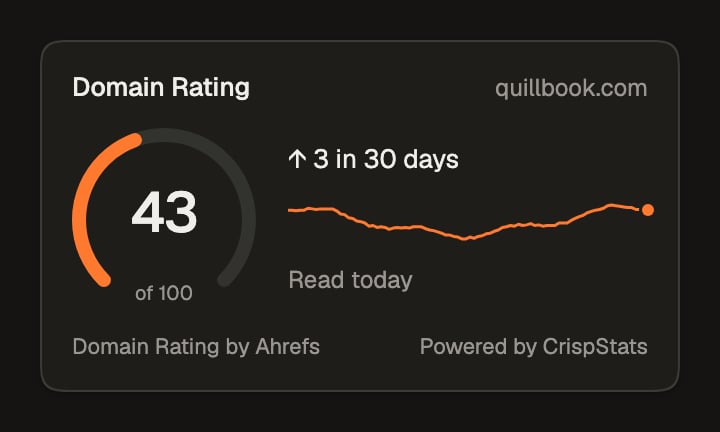
Domain Rating card
Create a widget
1
Open the widgets screen
Open your site, then Settings and the Sharing and widgets tab; the widgets are below the public dashboard. Your widgets lists the widgets of this site; Add a widget below it is a gallery of ready-made widgets, drawn with your own numbers.
2
Pick one from the gallery
The gallery is grouped by what the widget is for: Show the crowd, Show growth, Prove revenue, Show reliability, Show authority and For READMEs and footers. The Style and Page switches above it redraw every tile, so you can compare the same widget in each style on a light or a dark page. Tiles marked Sample data use demo numbers because this site has none for that widget yet.
3
Adjust it
Choose the layout, size, style, what it counts and over which range. The preview redraws on a light page, a dark page, a GitHub README or a 390 px phone screen. What becomes public lists, with today’s values, everything anyone who sees the widget can read.
4
Create it
Select Create widget. Revenue and sales widgets first open This will be public: tick I want to publish this and select Publish revenue. See Revenue and sales.
5
Copy the code
Under Code, pick a tab (HTML, iframe, README, Markdown, Notion, shields, React or JSON) and copy it. Where are you adding it? gives one line for WordPress, Webflow, Framer, Shopify, Ghost and Carrd. Every form is on Embed a widget.
What a widget can show
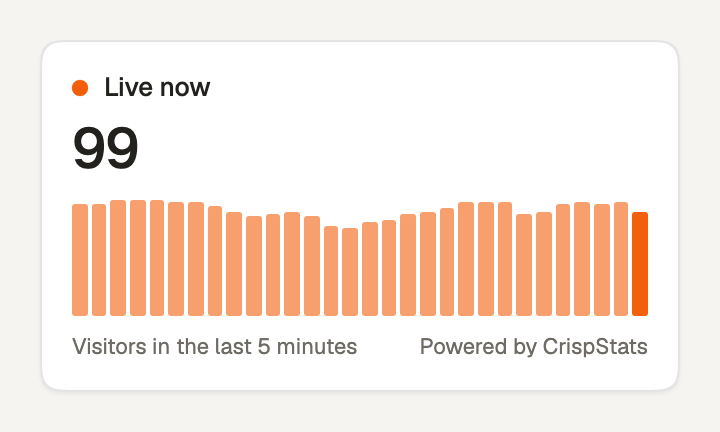
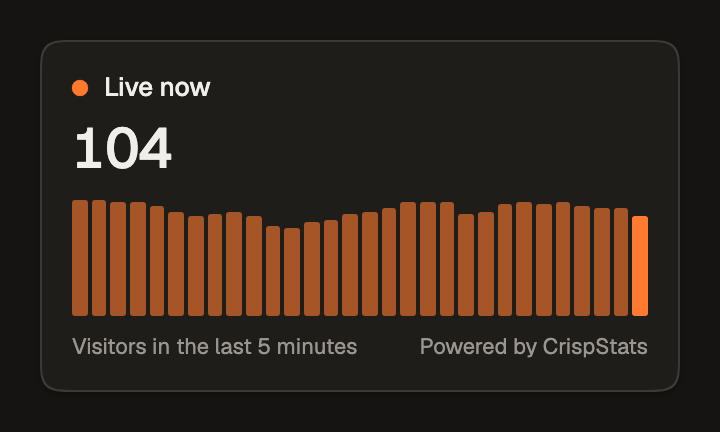
Live visitors card
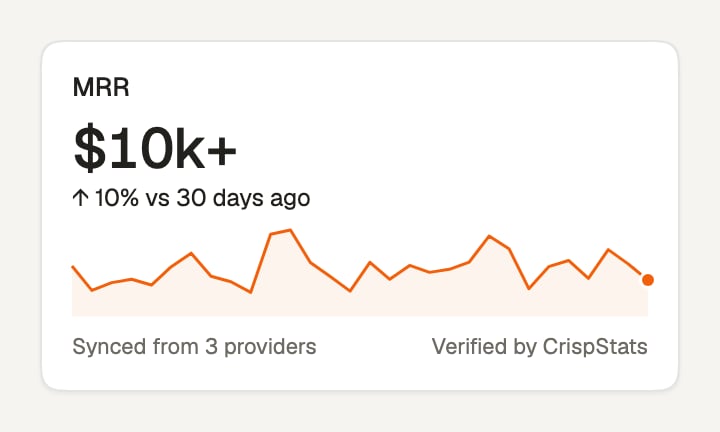
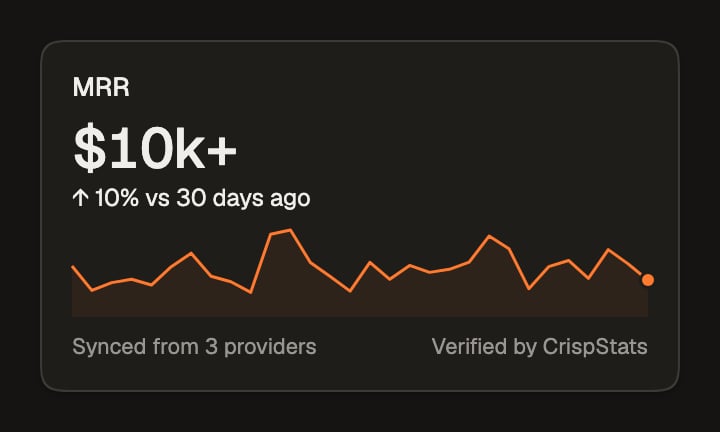
Verified revenue card
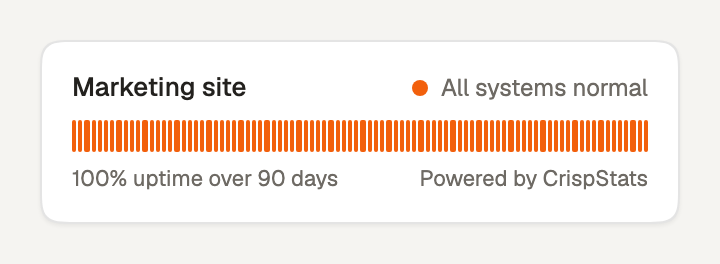
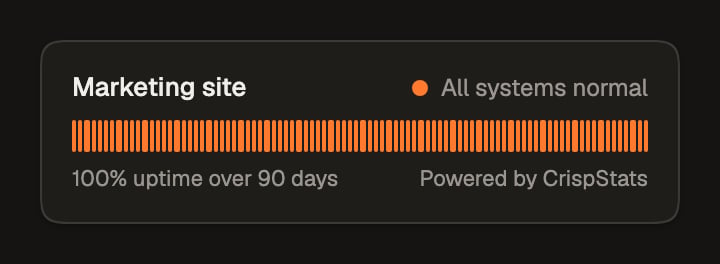
90-day uptime strip
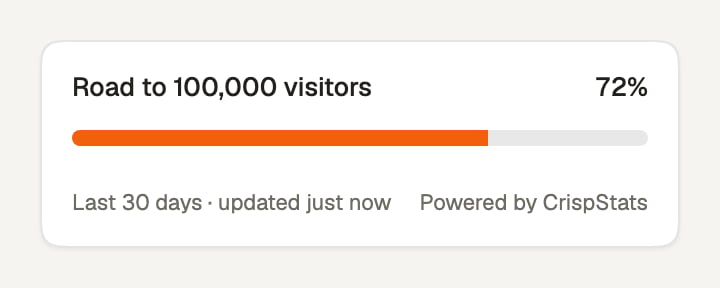
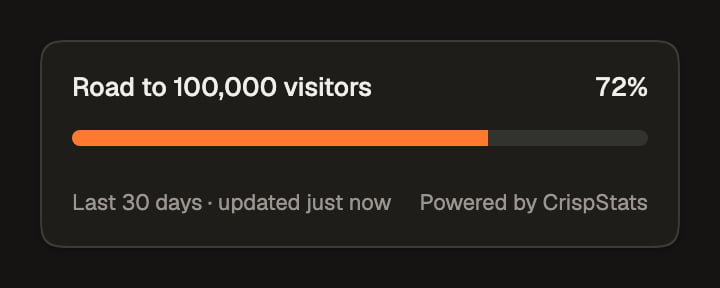
Growth goal
Layouts and sizes
Each layout has three sizes. The snippet reserves the exact box before the data arrives, so nothing on your page moves when the widget loads. A pill fits its sentence inside that box, aligned to the start: a longer sentence gives way to a shorter one at a smaller size, such asin 30 days for in the last 30 days, and the full sentence stays in the widget’s title for screen readers.
A badge is an image with a label on the left and the value on the right. It is 20 px tall in the Flat badge style, which matches shields.io, or 28 px in Crisp, which is rounder; its width follows the words.
Changing the layout or the size changes the box: copy the code again afterwards. Everything else, the style included, reaches the copies you already pasted.
Styles
The style changes the surface, the edge and the shadow. Sizes, type and spacing stay the same, and the script, the iframe and the image all draw the same style. You can change it at any time without copying the code again.Soft
The default: a white card with a hairline and a soft shadow on light pages, a dark card on dark pages. It fits almost any page.On a light page
On a dark page
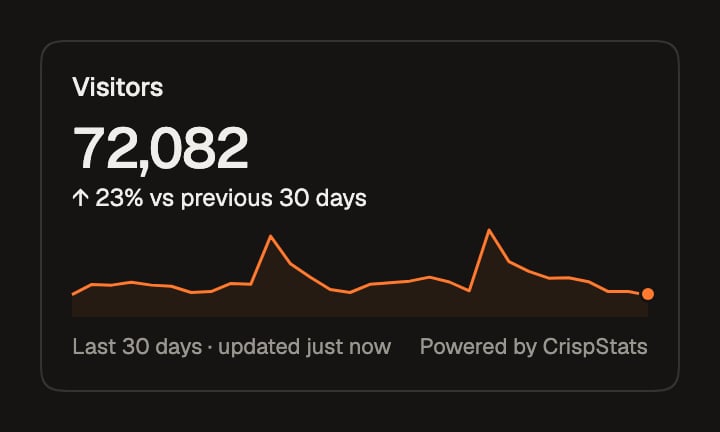
Outline
No fill, only the hairline. The page’s own colour shows through, so it suits pages with a coloured background.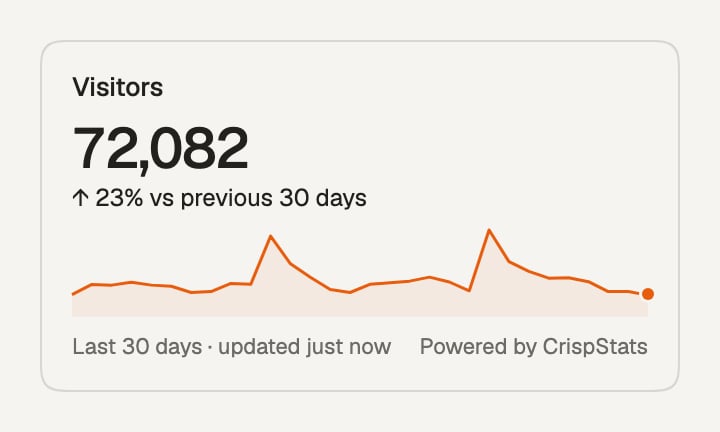
On a light page
On a dark page
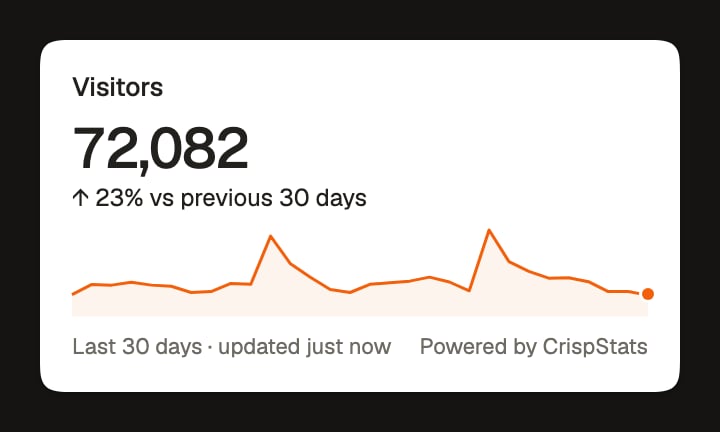
Solid
Inverted: a dark card on light pages and a white card on dark pages. The strongest signal for a small space.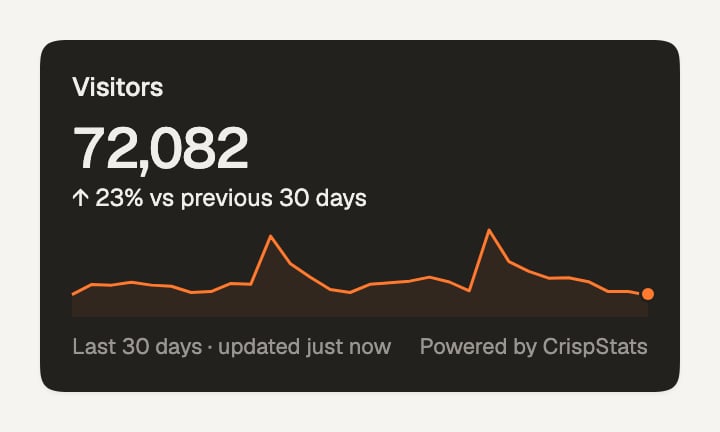
On a light page
On a dark page
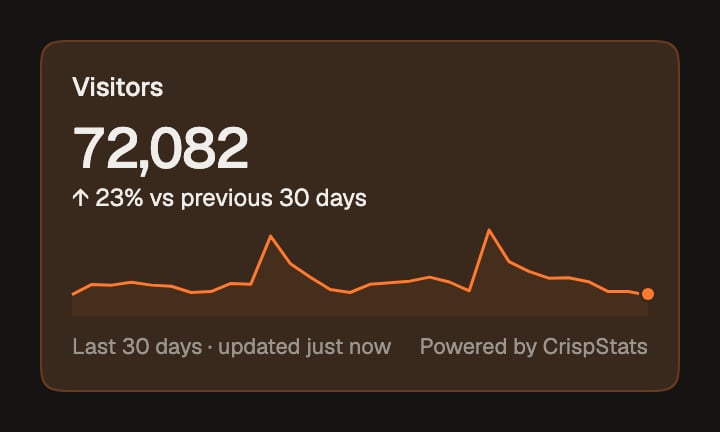
Tint
The accent colour washed into the surface, with an accent hairline. Made for branded pages.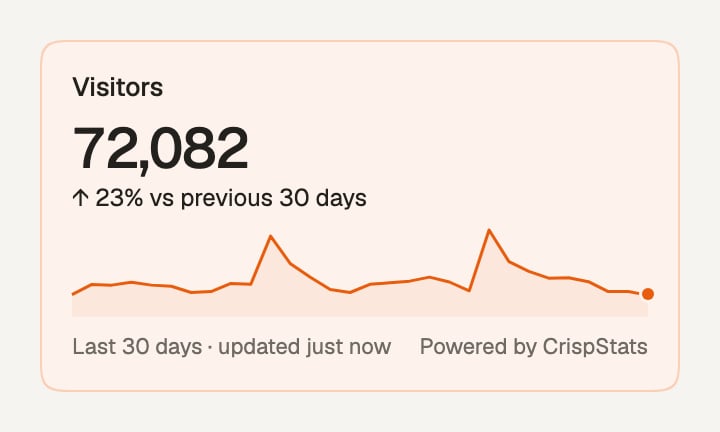
On a light page
On a dark page
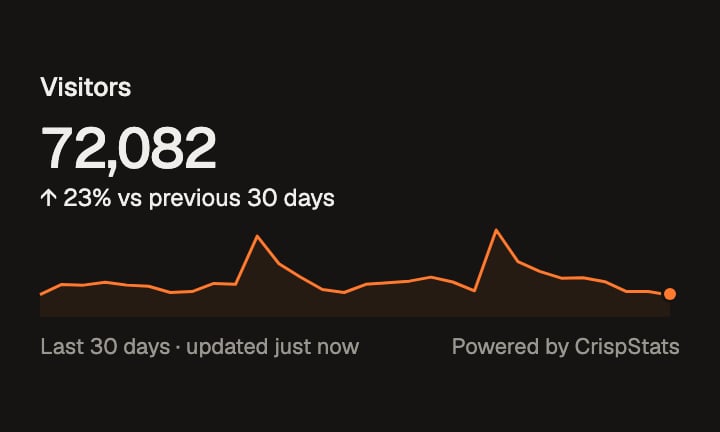
Plain
No surface at all: text and marks only, for footers and for numbers set inside your own copy.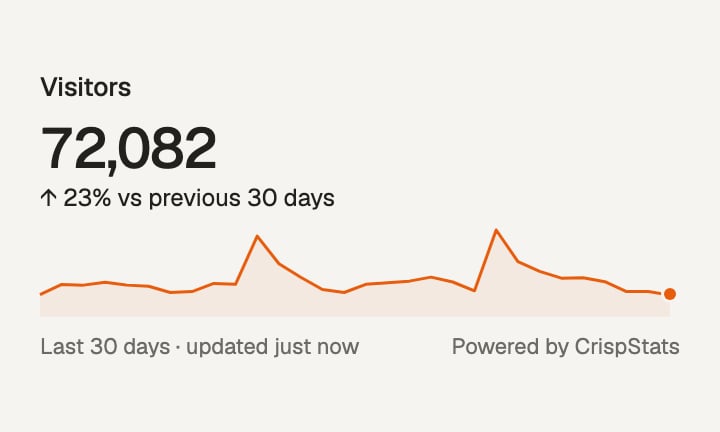
On a light page
On a dark page
Theme and accent
Theme is Auto, Light or Dark. On your pages, Auto follows the page the widget sits on, not the reader’s system setting, so a light page stays light for a reader in dark mode. The script looks, in order, at:- a section under the widget with its own background, such as a dark footer;
- the page’s own theme switch: a
darkorlightclass, ordata-theme,data-bs-theme,data-modeordata-color-mode, on<html>or<body>, then acolor-schemethat names one scheme; - the background of
<body>or<html>.
theme="light" or theme="dark" on the element; to fix it everywhere, pick Light or Dark in the widget.
The iframe and the image cannot see the page they are on, so with Auto they follow the reader’s system setting. In a README, the README form of the code shows the light or the dark image to match GitHub’s theme.
Accent colours the marks only: the live dot, charts, bars, the goal bar and the Domain Rating gauge. Text always uses the style’s own ink, so it stays readable. Pick Orange, Ink, Blue, Green, Violet or Pink, or enter a hex colour. A hex colour must reach a contrast of 3:1 on both a white and a dark card; a paler one is refused with “Pick a darker colour: this one fades on white or on dark.” On the other styles’ grounds the accent is deepened slightly where needed, so it never fades.
Formats
The same widget can be pasted in several forms. Embed a widget has the code for each.
The script redraws the figure as it changes. Images and shields badges are pictures: proxies such as GitHub’s image proxy cache them, so they lag a few minutes behind.
Credit and attribution
Cards, goals and strips end with a small Powered by CrispStats link. Revenue and sales widgets say Verified by CrispStats instead and link to their proof page. On a pill the credit is the CrispStats mark at the end, with the same words as its title. The credit links to your public dashboard when it is on, and to the CrispStats home page otherwise.
On the site summary our credit is part of the design and always shows. A Domain Rating widget always shows “Domain Rating by Ahrefs” next to the number, with “Ahrefs” linking to Ahrefs, on every plan and whatever the Credit switch says. Ahrefs’ licence requires it. See Domain Rating.
What is public, and what never is
A widget exposes the figures of its own kind and settings and nothing else. What becomes public in the widget shows the exact list before you create it, for example:- Visitors in the last 30 days (71,942)
- Change against the 30 days before
- A chart of the same period, as a shape
- Your site name and domain
- A live count between 1 and Hide below (default 3) shows “A few people online now”, or nothing, never the number.
- A country appears on the live card only with at least 3 visitors; an AI assistant is named only with at least 3.
- A revenue figure appears only after 3 verified payments; before that the widget says “verified” without a number.
- A count of 0 hides the widget instead of showing “0”.
Nobody who sees a widget is tracked
The widget script and the iframe set no cookies, use nolocalStorage, sessionStorage or IndexedDB, send no beacons and carry no identifiers. They never call the collector’s event endpoint and never count a pageview, on your site or anyone else’s. The one request they make, for the widget’s data, carries no cookies and no page address: only the host name a browser sends with every cross-site request. The collector uses the IP address of a request in memory only, to rate limit, and never stores it. For each widget, CrispStats keeps the time it was last loaded and the host name of the page it was loaded on, written at most once every 10 minutes, so Your widgets can say “Seen on quillbook.com · 4 min ago”. Nothing else about the page or the reader is kept.
Limits
Widgets count per workspace, across all of its sites. Brand badges are not widgets and do not count.
At the limit, Add a widget is turned off with “Your plan includes 3 widgets.” (with your plan’s number) and a link to compare plans. Paused widgets count toward the limit too, so switching one on again never takes you past it.
If you move to a smaller plan, the oldest switched-on widgets up to the new plan’s limit keep showing and the newer ones stop. Pause an older widget to let a newer one show instead. When the trial ends without a plan, or a paid plan ends, the workspace is locked and every widget stops showing until you pick a plan. See Plans and limits and the pricing page.
Pause, change or delete a widget
Each row in Your widgets has a switch and a menu.
A paused, deleted or unknown widget answers the same
404 everywhere, and the script removes it from your page without leaving a gap or a broken image. A page that is already open drops it at its next refresh: within a minute for a live count, within 10 minutes for the others. Images in a README and shields.io badges pass through caches that are not ours: GitHub’s image proxy and shields.io keep their own copy for a few minutes, so those can take up to about 5 minutes longer. Copies and screenshots made by others can outlive a widget you delete.
Allowed sites limits where a widget may appear: enter up to 10 host names, or select Only my sites. Empty means anywhere.
The iframe enforces the list: a browser refuses to show it anywhere else. For the script and images the list stops casual copying, not a determined copier, because a request that names no page, such as GitHub’s image proxy, is still answered. A page that hides its address, such as a sandboxed frame or a page opened from a file, cannot show a script widget that has a list; use the iframe there, or leave the list empty.
Next steps
Embed a widget
Every form of the code: script, iframe, README, Notion, shields.io and React.
Brand badge
“Powered by CrispStats” for any page or README, no account needed.
Widget JSON
Read a widget’s data and draw it yourself.